 hangil.app

Hangil Kana Pad
A small floating keyboard for writing Japanese hiragana and katakana on a computer with no Japanese IME installed.
Chrome or Edge 116 and later. Free, with every feature included.Getting started
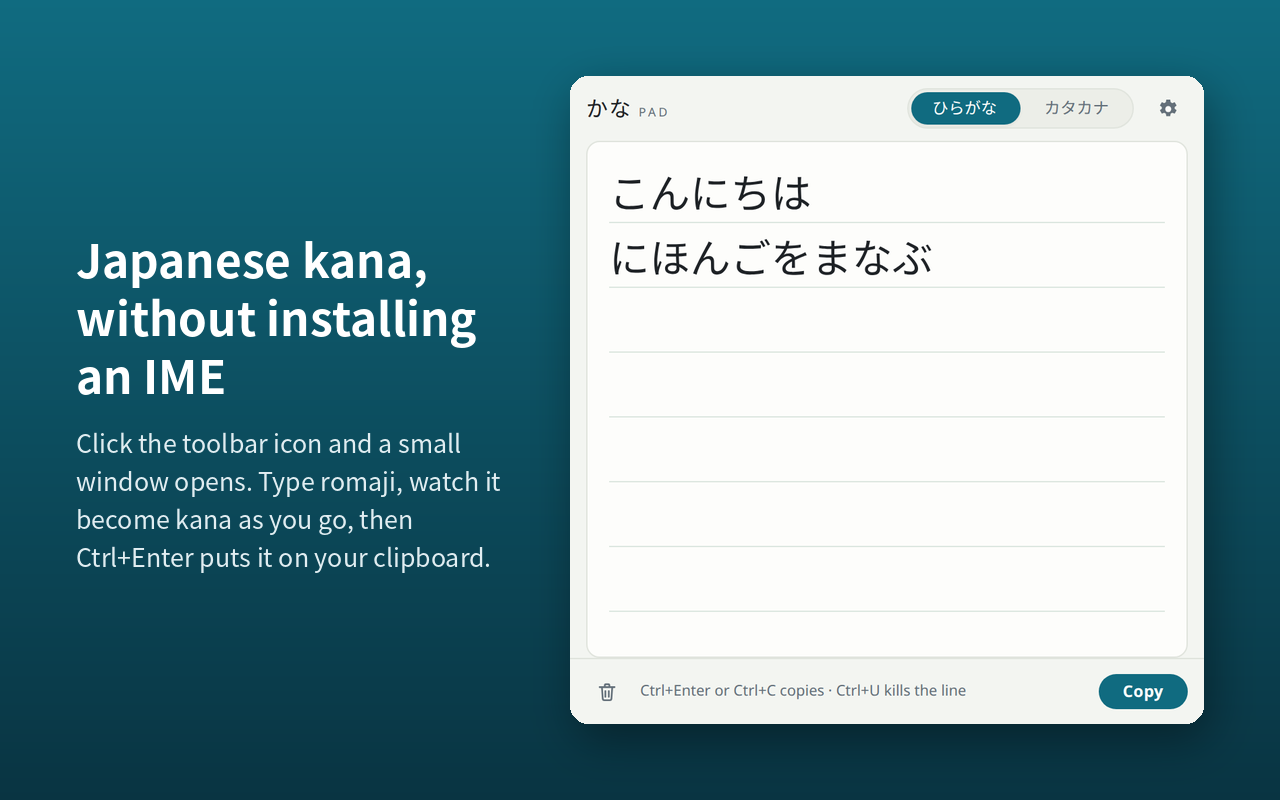
Click the toolbar icon and a compact window opens, detached from the browser. Type romaji, watch it become kana as you go, then press Ctrl+Enter and it is on your clipboard. Nothing to install at the operating-system level, nothing to configure, and no kanji conversion getting in the way.
The window stays open when it loses focus. That is deliberate — the whole point is to type kana here and then click into another window to paste. It also remembers its size and position, and your text is still there the next time you open it.
The window will not open
If clicking the toolbar icon appears to do nothing, the pad is probably already open behind your current window, or positioned on a monitor that is no longer connected. Clicking the icon again brings the existing window forward rather than opening a second one. To reset a window that has ended up off-screen, see Troubleshooting.
What it looks like
Keyboard
| Key | What it does |
|---|---|
| Alt+Shift+K | Open the pad from anywhere in the browser |
| Enter | A new line, always |
| Ctrl+Enter | Copy |
| Ctrl+C | Copy everything — or just the selection, if there is one |
| Ctrl+K | Switch between hiragana and katakana |
| Space | A full-width space (U+3000), the space an IME writes in Japanese input mode |
| Shift+Space | An ordinary ASCII space |
| Ctrl+U | Delete from the start of the line to the cursor |
| Ctrl+Shift+Backspace | Clear the pad — Ctrl+Z brings it back |
| Esc | Close the window, keeping your text |
On a Mac, use ⌘ wherever the table says Ctrl — the pad relabels these keys for you, and accepts either one.
The opening shortcut is rebindable. Go to
chrome://extensions/shortcuts, or
edge://extensions/shortcuts on Edge — you will need to
paste that into the address bar, since neither browser allows a web
page to link to it.
Typing notes
The doubled n
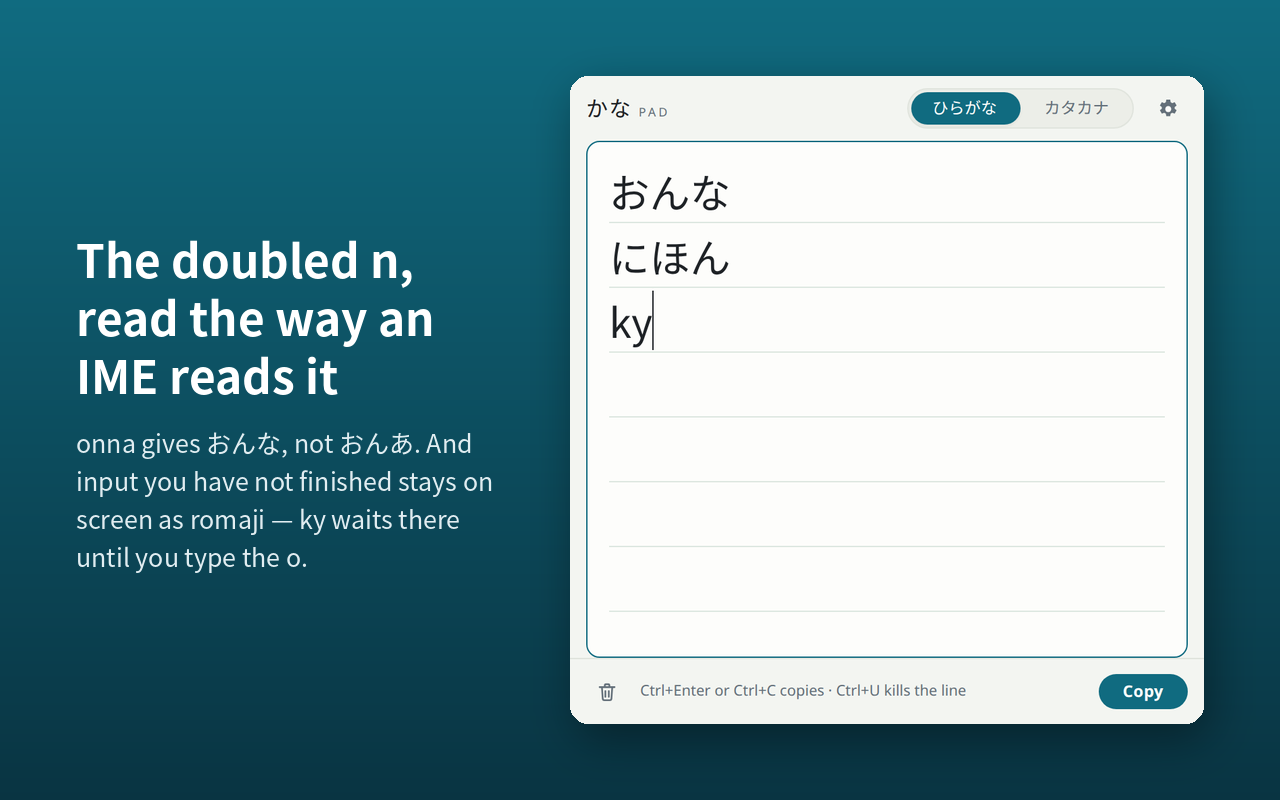
A real Japanese IME reads onna as ん + な and gives you
おんな. Many romaji converters read the
doubled n greedily and hand you おんあ,
forcing you to type a third n. Hangil Kana Pad rewrites the input the
way an IME would, so the spellings you learned elsewhere work here:
Where it follows the table instead
Everywhere else it follows the standard IME romaji table rather than
trying to be clever, including where that table is inconvenient.
konnyaku gives こんやく, and
こんにゃく wants kon'nyaku —
exactly as in MS-IME or Google IME. Both Hepburn and kunrei spellings
are accepted: shi/si, chi/ti, tsu/tu, fu/hu and ji/zi all work.
Particles are spelled, not sounded
The particle を is pronounced o,
but you type wo — o on its own gives
お. The same goes for the other two
particles that are said differently from how they are written:
は as a particle is typed ha,
and へ is typed he. This is
how every Japanese IME works, and it is why the greeting is entered
as konnichiha.
Input that is not finished yet
Incomplete input stays on screen as romaji, so nothing ever silently
disappears. ky sits there until you finish it with
kyo → きょ. A trailing n is
likewise left as romaji while you type, because it is still
undecided; it settles into ん the moment
you type a space, start a new line, click away, or copy.
The hiragana / katakana switch
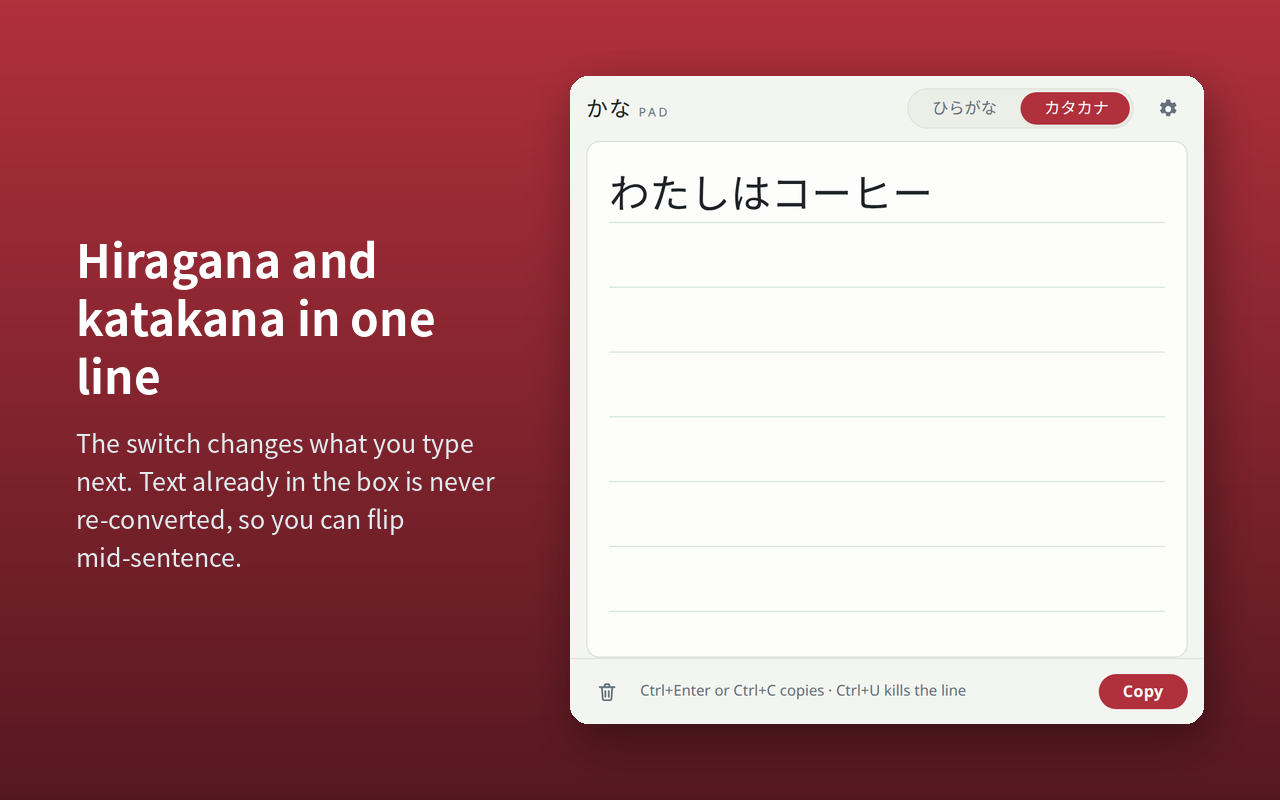
The switch changes what you type next. Text already in the box is never re-converted, so mixing あ and ア in one line is just a matter of flipping it mid-sentence.
Settings
The settings panel opens from within the pad. Your preferences follow your browser profile, so the same choices show up on your other machines.
Font and size
Five families — Gothic ゴシック体, Mincho 明朝体, Rounded 丸ゴシック体, Textbook 教科書体 and Monospace 等幅 — and any size from 18 to 56 px. Kana is set large by default, because the people who need this tool are usually still learning to read it. Textbook style shows the stroke shapes the way they are taught for handwriting.
The fonts come from your own computer rather than being downloaded, which means the list depends on what you have installed. See the Textbook note under Troubleshooting.
Starting over
Two controls at the foot of the panel undo things: Reset all settings to defaults, and Reset the window size and position. Neither touches what you have typed.
Interface language
English, 日本語, 한국어, 简体中文, 繁體中文 and ไทย. The pad follows your browser's language by default, and the setting overrules it — because plenty of learners run an English browser while wanting a Japanese interface, or the reverse.
Troubleshooting
- Textbook 教科書体 is missing, or looks like Mincho
- The pad uses fonts installed on your computer, and the textbook family it looks for ships with Windows. On macOS and Linux there is usually no textbook face installed, so the pad falls back to another family. Installing a textbook-style Japanese font makes it available.
- Alt+Shift+K does not open the pad
-
Another extension or an operating-system shortcut has most likely
claimed the same combination. Both browsers assign the shortcut
to whichever extension registered it first and silently leave the
other unbound. Open
chrome://extensions/shortcutsoredge://extensions/shortcuts, find Hangil Kana Pad, and set a combination of your own. - The pad opened somewhere I cannot reach
- It remembers where it was last, which is unhelpful if that was a monitor you have since unplugged. Open the settings panel and choose Reset the window size and position: the pad returns to its default size and re-centers itself on the screen you are actually using. Your text and your other settings are kept.
- I cleared the pad by accident
- Ctrl+Z brings it back, as long as the pad still has focus and you have not closed the window. The one exception is Erase the text and its history in the settings panel, which is meant not to come back: it empties the pad, drops the draft kept for next time, and puts both beyond Ctrl+Z. Your clipboard is not touched either way.
- Can it convert kanji?
- No. It converts kana only — there is no kanji conversion, no dictionary and no candidate list. That is a deliberate limit rather than a missing feature: it keeps the window to one text box, and it keeps the permissions to almost nothing.
- Can it type directly into a web page?
- No. The pad is a separate window and you paste from it. Typing into the page underneath would require permission to read and modify every site you visit, which the extension deliberately does not ask for.
- Does it work in other browsers?
- It is built for Chrome and Microsoft Edge, version 116 and later, and is published in both stores. Firefox and Safari are not supported at present.
Privacy
Hangil Kana Pad collects no data of any kind. Nothing you type leaves your machine.
The extension makes no network requests at all, and it has no access to any web page — no host permissions, and no content script running on the sites you visit. The Japanese fonts come from your own computer rather than being loaded from the web. There is no account, no analytics and no telemetry in the extension.
It asks for two permissions, and that is the whole list:
| Permission | Why |
|---|---|
| storage | Saves your pad text, the window's size and position, and your preferences — interface language, font, text size and copy behavior — so they are still there next time. This is stored by your browser, in your own profile. |
| clipboardWrite | Writes the converted kana to your clipboard when you press the copy button or Ctrl+Enter. |
If your browser profile is signed in and syncing, your settings travel with it between your own machines through your browser's own sync, the same way your bookmarks do. That is a Google account feature and not a service run by us — we operate no servers and receive nothing.
This page itself is a web page on hangil.app and, like the rest of the site, carries Google's advertising tag for measurement. That applies to your visit to this page only. It is not part of the extension, and the extension loads nothing of the kind.
Support and contact
Questions, bug reports and suggestions are welcome by email: info@hangil.app.
For a bug report, these three things make it far easier to work out what happened:
- Your browser and version —
chrome://versionoredge://versionhas it - Your operating system
- What you typed, and what appeared instead of what you expected
This is a small tool maintained by one person, so a reply may take a few days.
The pad is free and stays free. Every feature is there from the moment you install it — no account, no trial, no upgrade. There is a tip jar at the foot of the settings panel for anyone who wants to say thanks, and it is a link and nothing more: no reminders, no counting, and nothing held back behind it.
Legal
Hangil Kana Pad is copyright © 2026 Gilbert Ramirez. All rights reserved.
Romaji parsing uses WanaKana 5.3.1, which is distributed under the MIT license and is included in the extension unmodified:
The MIT License (MIT)

Copyright (c) 2013 WaniKani Community Github

Permission is hereby granted, free of charge, to any person obtaining a copy of
this software and associated documentation files (the "Software"), to deal in
the Software without restriction, including without limitation the rights to
use, copy, modify, merge, publish, distribute, sublicense, and/or sell copies of
the Software, and to permit persons to whom the Software is furnished to do so,
subject to the following conditions:

The above copyright notice and this permission notice shall be included in all
copies or substantial portions of the Software.

THE SOFTWARE IS PROVIDED "AS IS", WITHOUT WARRANTY OF ANY KIND, EXPRESS OR
IMPLIED, INCLUDING BUT NOT LIMITED TO THE WARRANTIES OF MERCHANTABILITY, FITNESS
FOR A PARTICULAR PURPOSE AND NONINFRINGEMENT. IN NO EVENT SHALL THE AUTHORS OR
COPYRIGHT HOLDERS BE LIABLE FOR ANY CLAIM, DAMAGES OR OTHER LIABILITY, WHETHER
IN AN ACTION OF CONTRACT, TORT OR OTHERWISE, ARISING FROM, OUT OF OR IN
CONNECTION WITH THE SOFTWARE OR THE USE OR OTHER DEALINGS IN THE SOFTWARE.
Google Chrome and Microsoft Edge are trademarks of their respective owners.